Converged System AidLux
Quick Start
First Launch
After installation, the first launch performs one-time Linux environment setup. Depending on network conditions and hardware performance, this usually takes about 1 to 3 minutes. Once completed, you can enter the AidLux main interface.
As shown below, open the AidLux app on Android and click Start.

Log in to the AidLux System
For login instructions, see Converged System Login.
Examples
Open the examples app on the desktop.
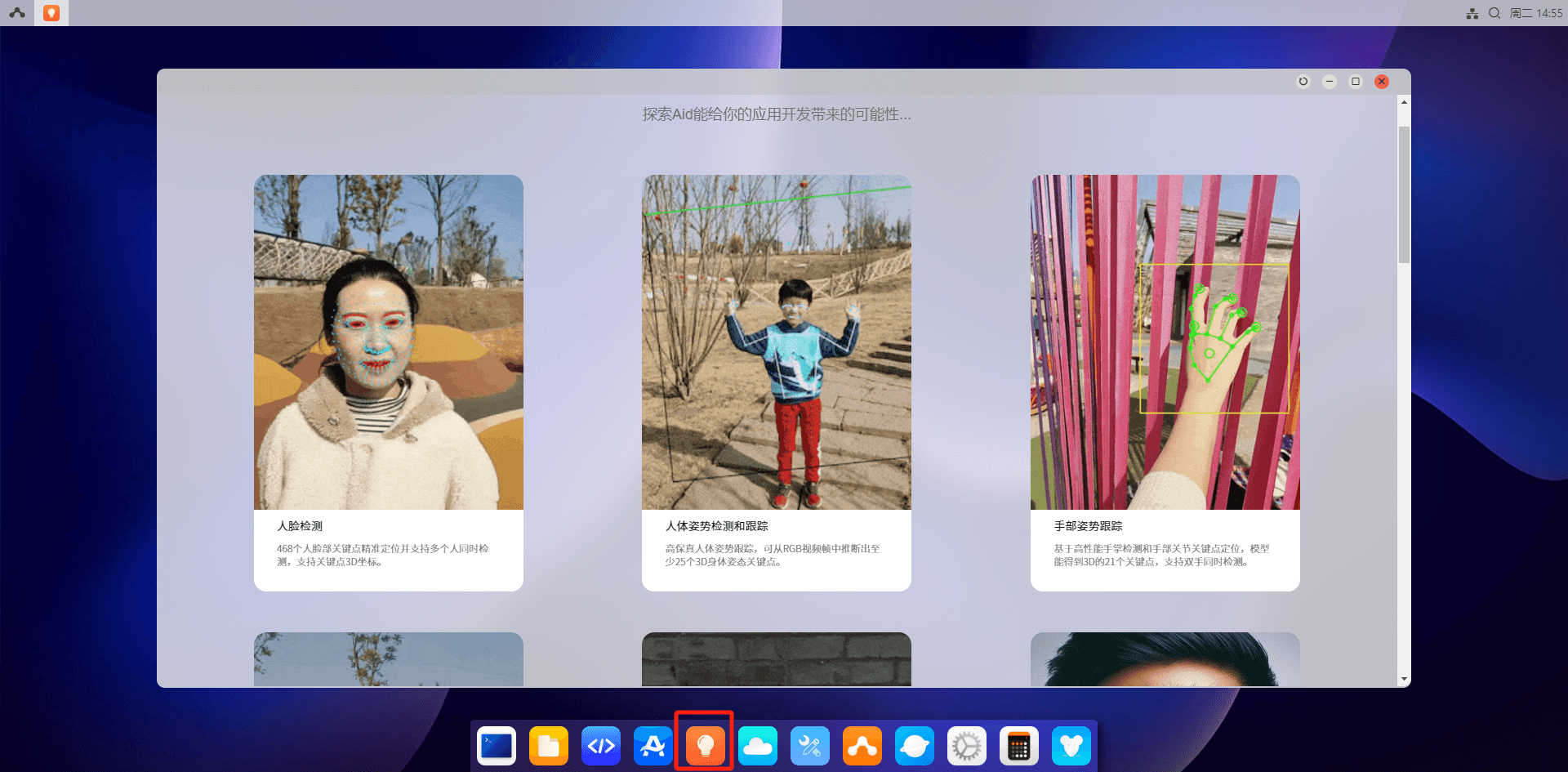
The app provides AI examples. Click an example to view source code in AidCode, then click Run to preview model results.

App Center
- AidLux Apps
Open App Center. Under the AidLux section, choose the app icon you want to install and click Install. The installation password is aidlux.
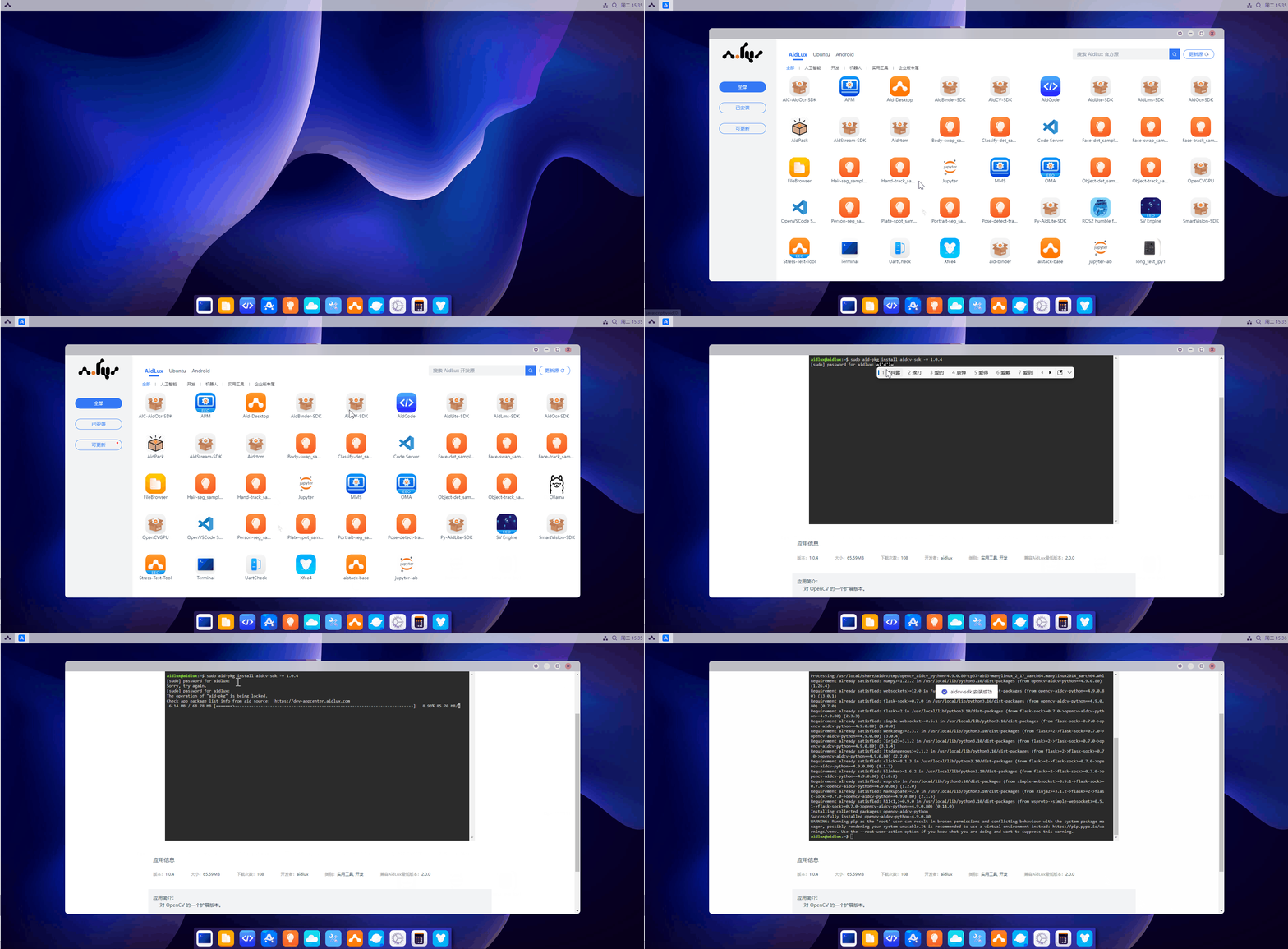
Installed apps can be viewed under Installed. Select an installed app icon and click the button to add it to the desktop, then click the icon to use it. (In the Installed tab, you can also click an icon to uninstall the app.)
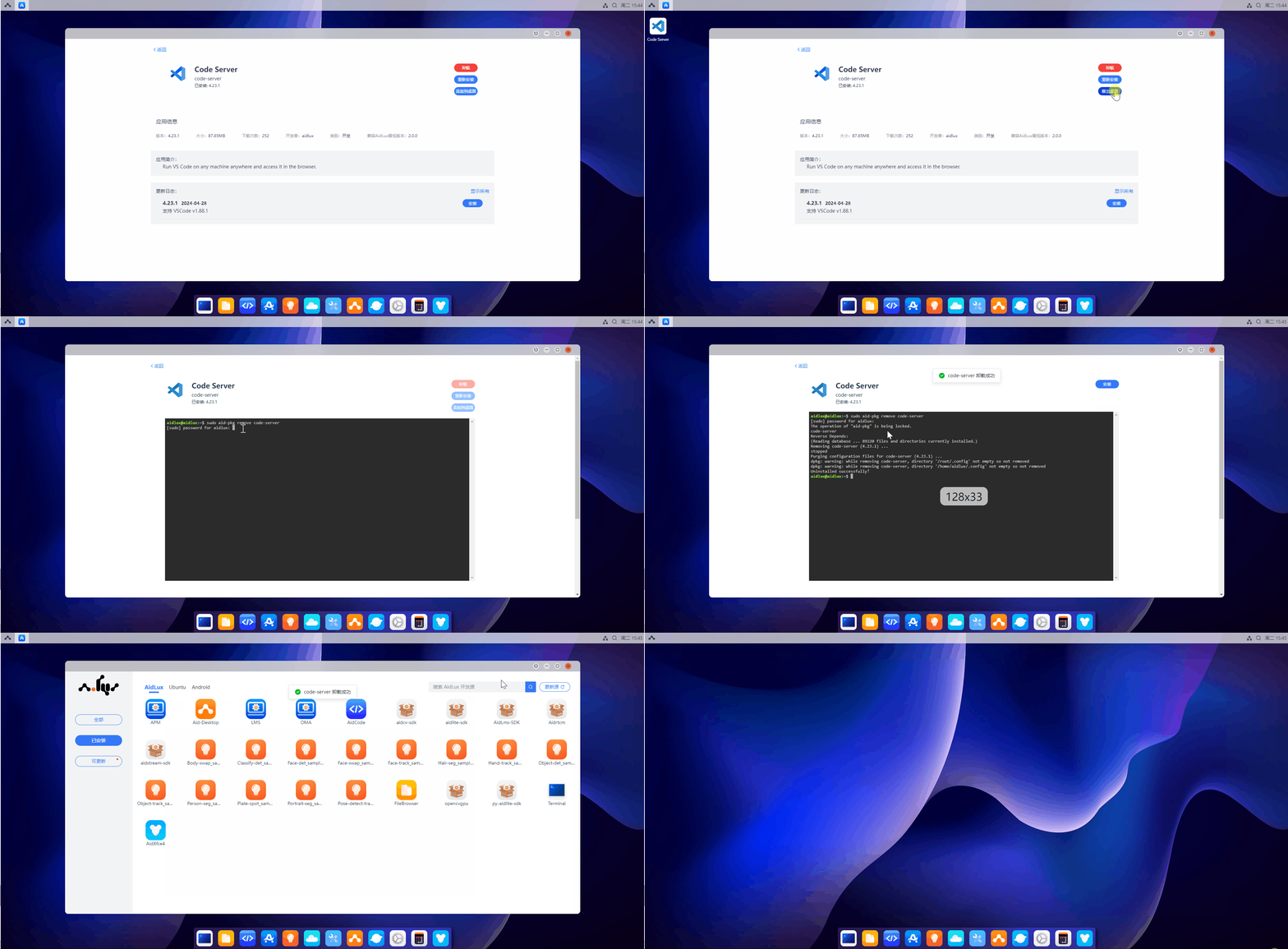
- Android Apps
Open App Center, choose an app icon under the Android section, and select Add to desktop. Note that Android apps are not supported in the web remote desktop view; use this feature on an Android device. Added apps appear on the AidLux desktop and can be launched by clicking their icons. In Android Added in App Center, you can also remove added apps from the desktop.

AidCode
- Open the AidCode app icon on the desktop. The top area is for actions, and the bottom area is the code editor.
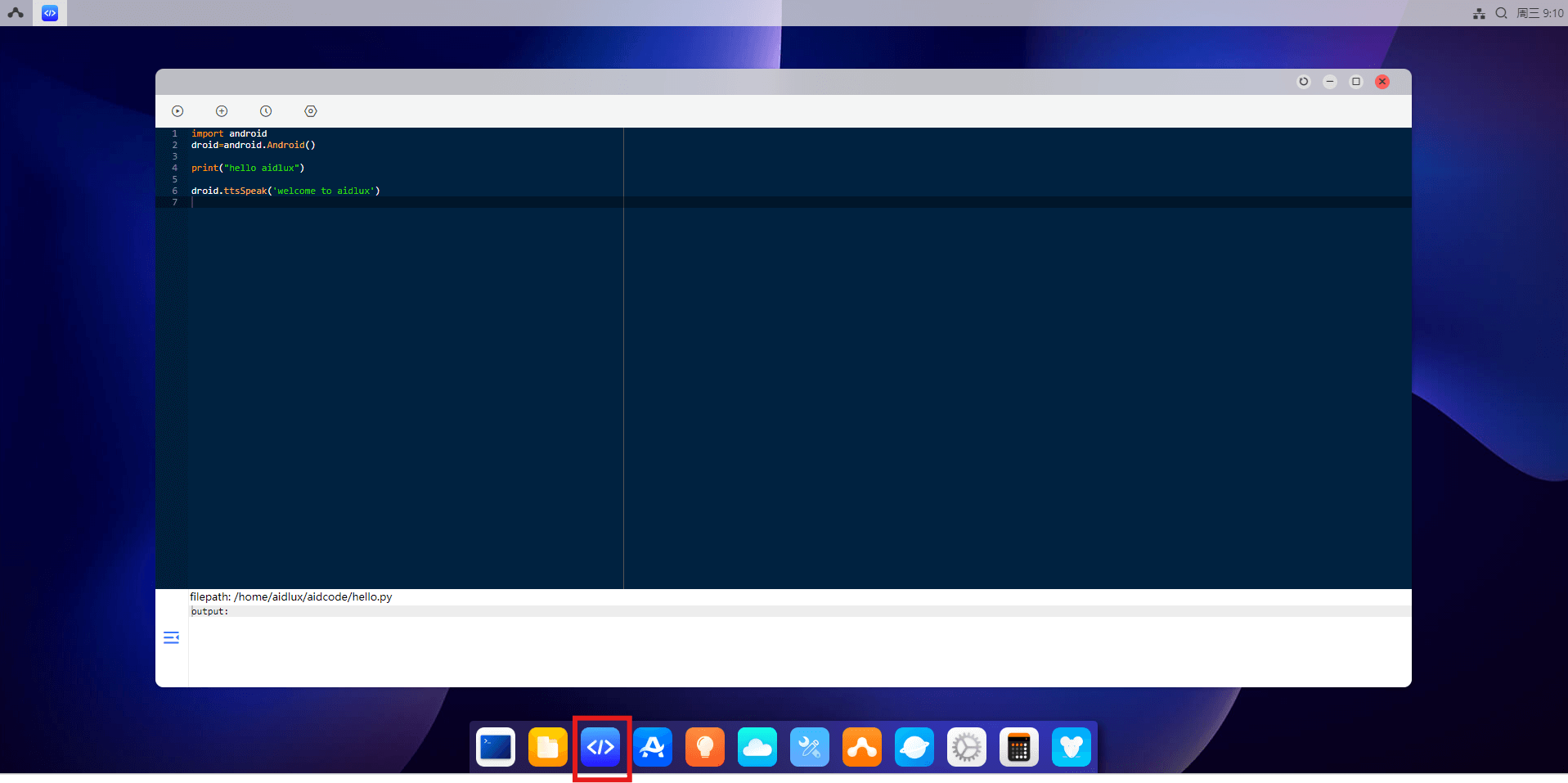
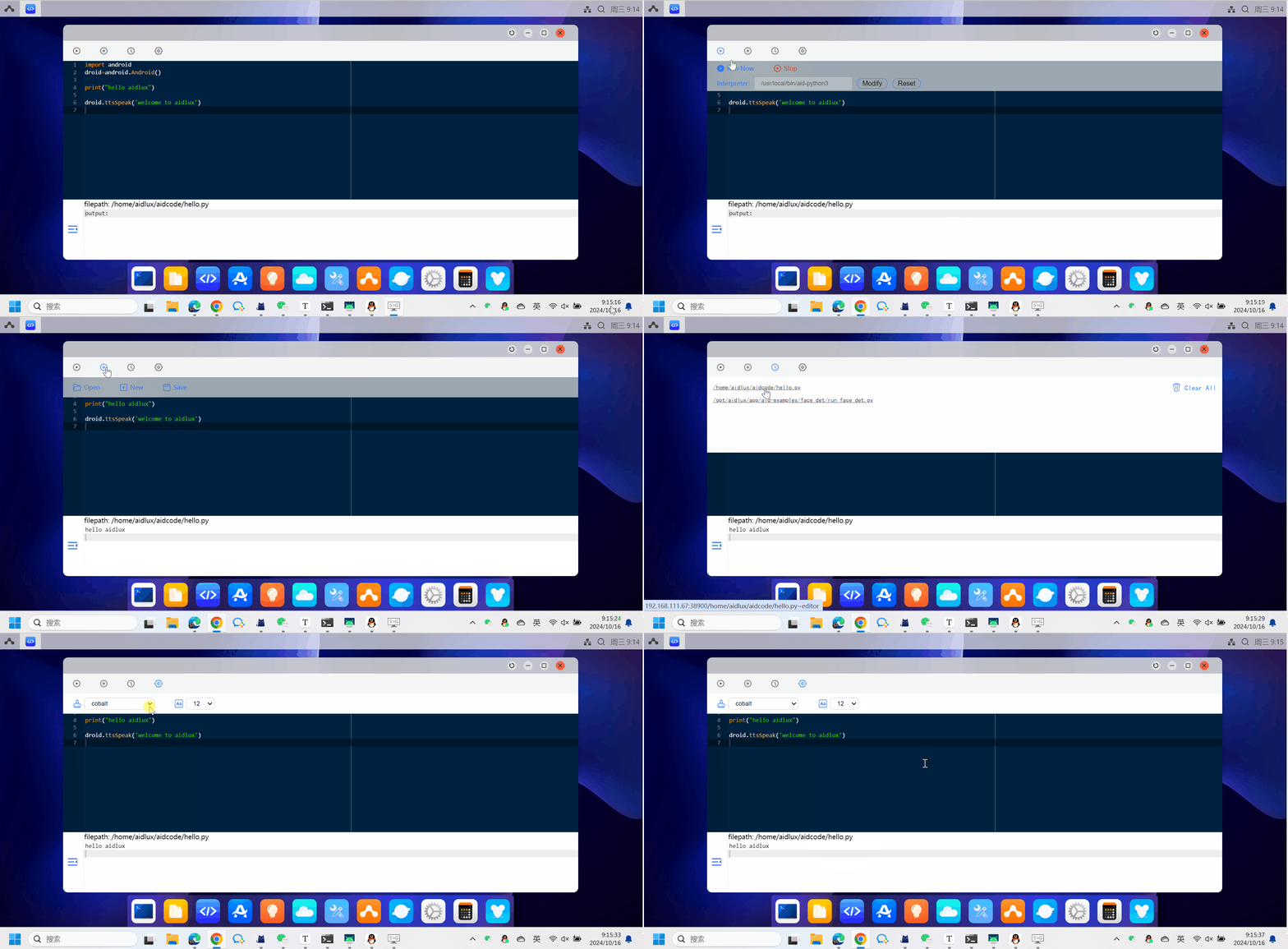
Click the first top button to expand a submenu:
Run Now: Run the current code
Stop: Stop execution
Click the second top button to expand a submenu:
Open: Open a Python code file
New: Create a new Python code file
Save: Save the Python code file
Click the third top button to view recently opened files.
Click the fourth top button to configure code style and font size.
💡 Note
Using iFlytek input method is not recommended.
Settings
- Open the Settings icon on the desktop to switch wallpapers, change desktop style, adjust display settings, configure network settings, and change system language under other settings.

💡 Note
Desktop resolution settings are not available in the web desktop.
File Browser
Click the file manager icon on the AidLux desktop to enter the file browser. You can see the AidLux directory structure on the left:
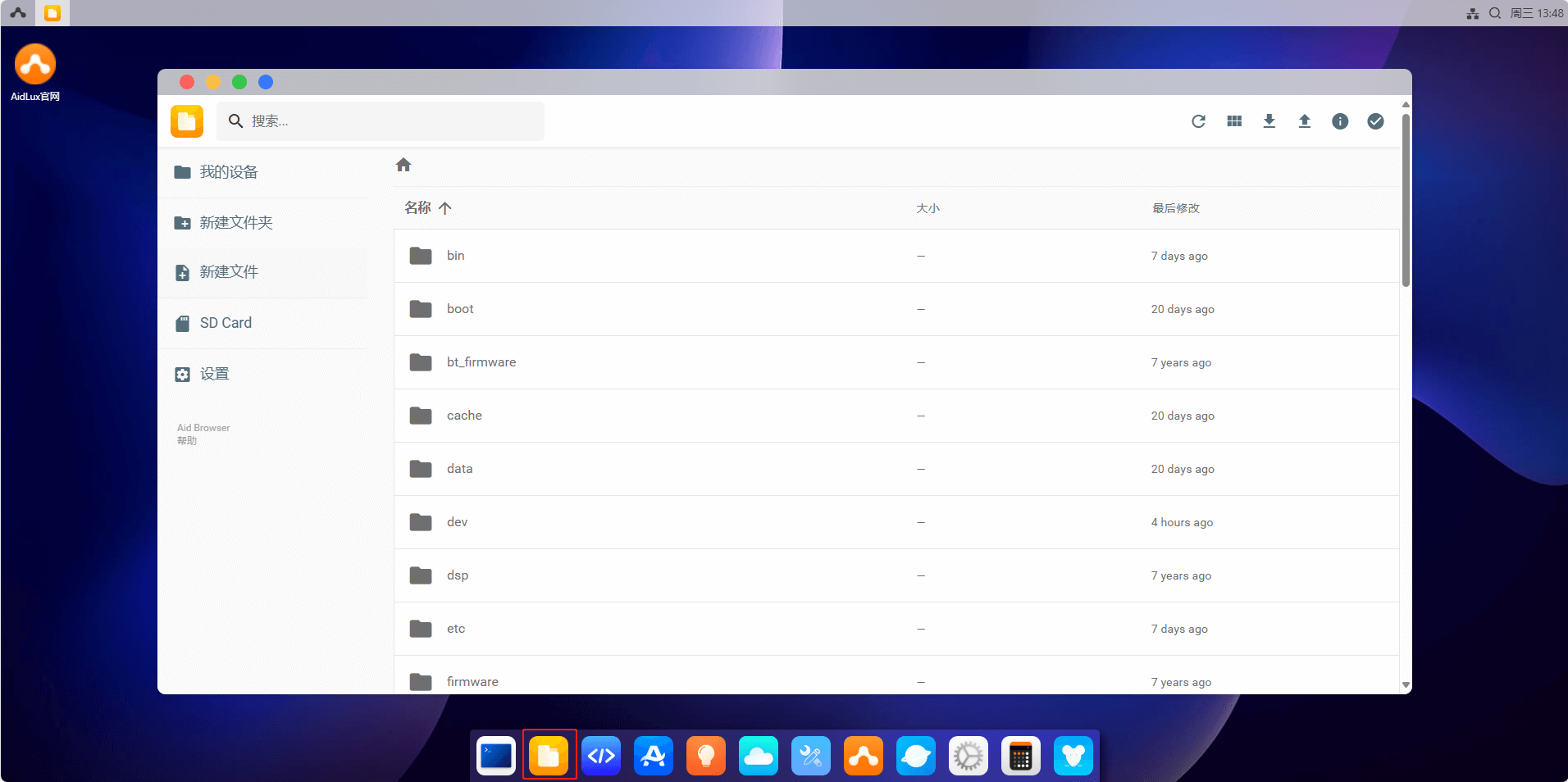
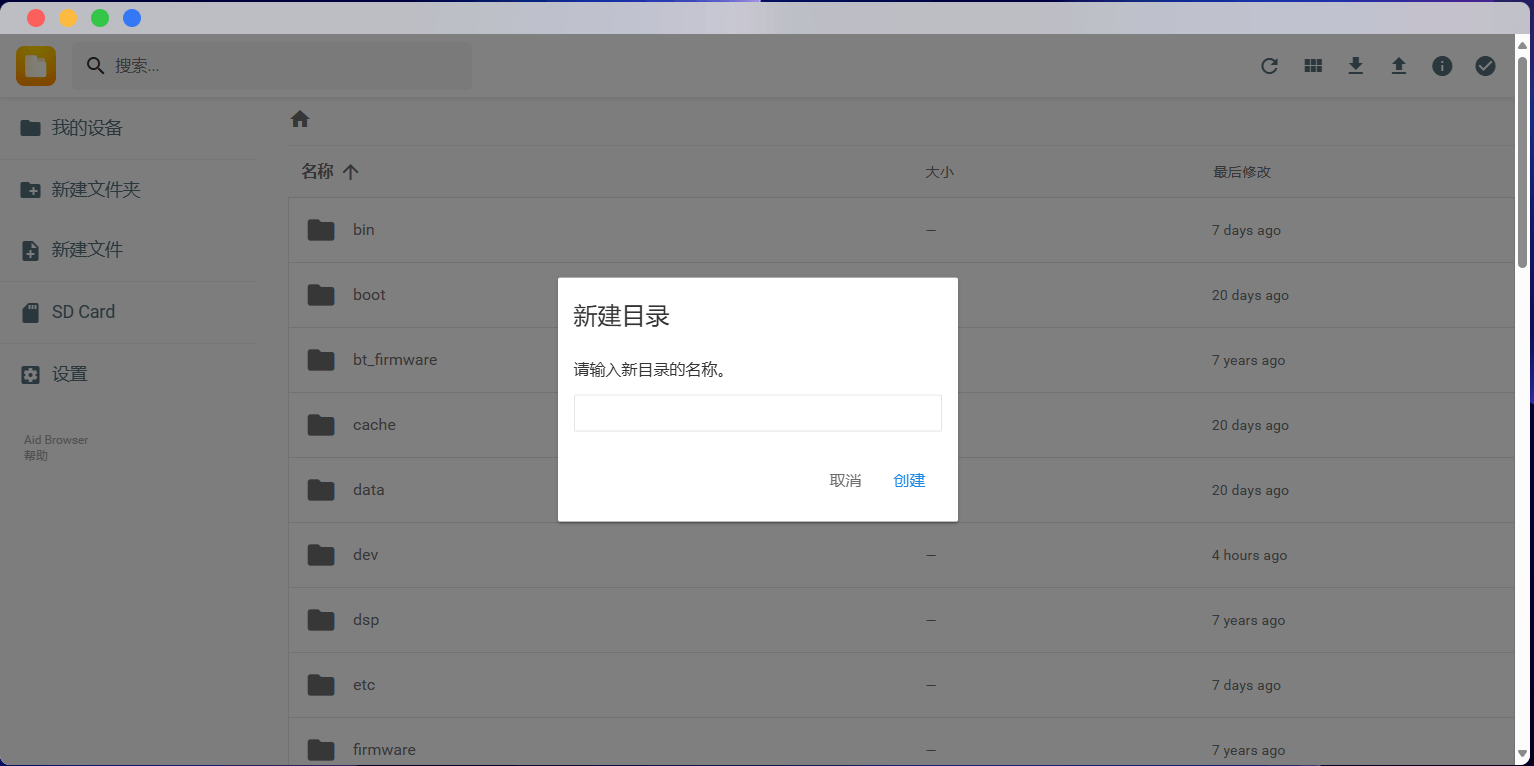
Select New Folder on the left and enter a name to create a folder:
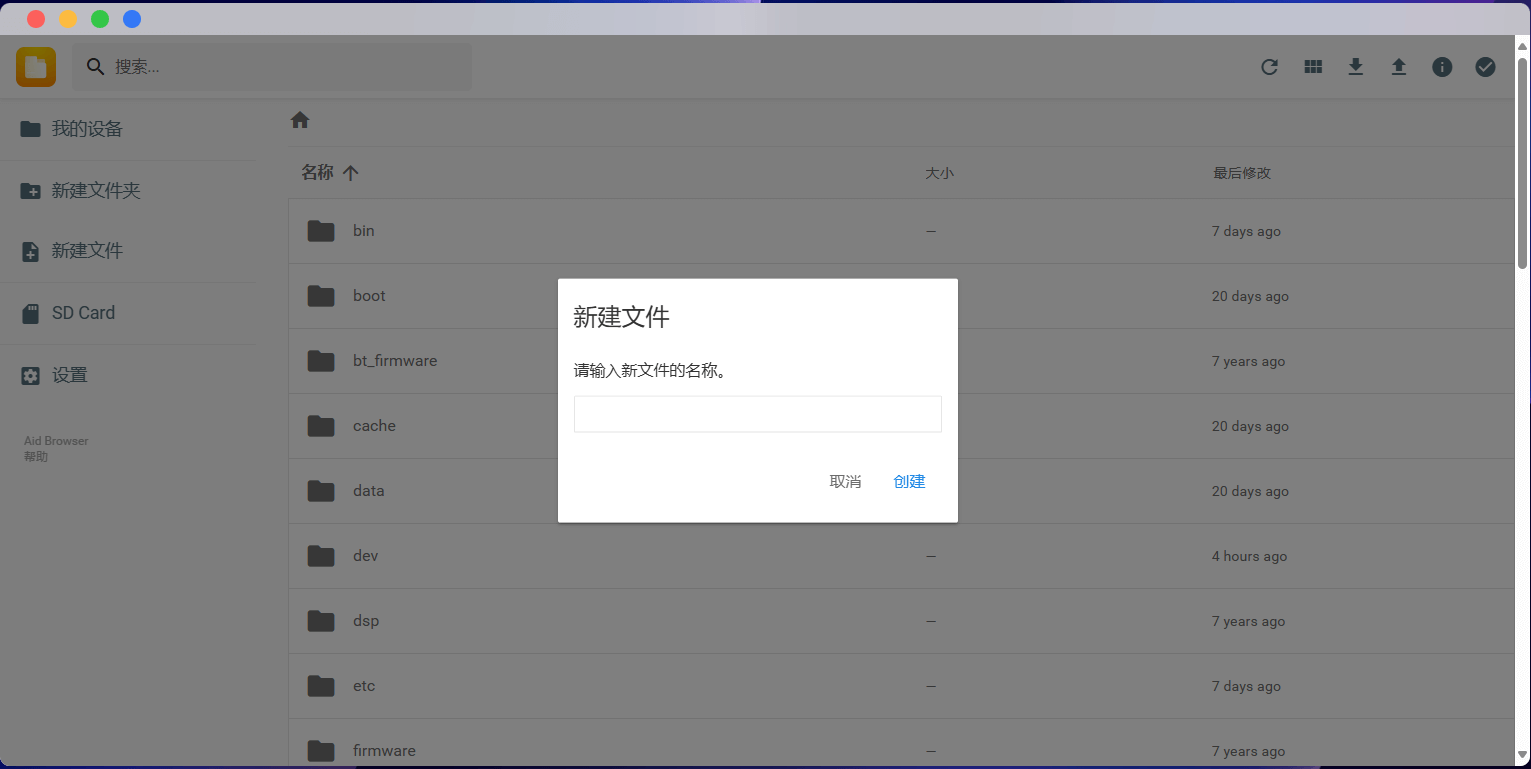
Select New file on the left and enter a filename to create a file:
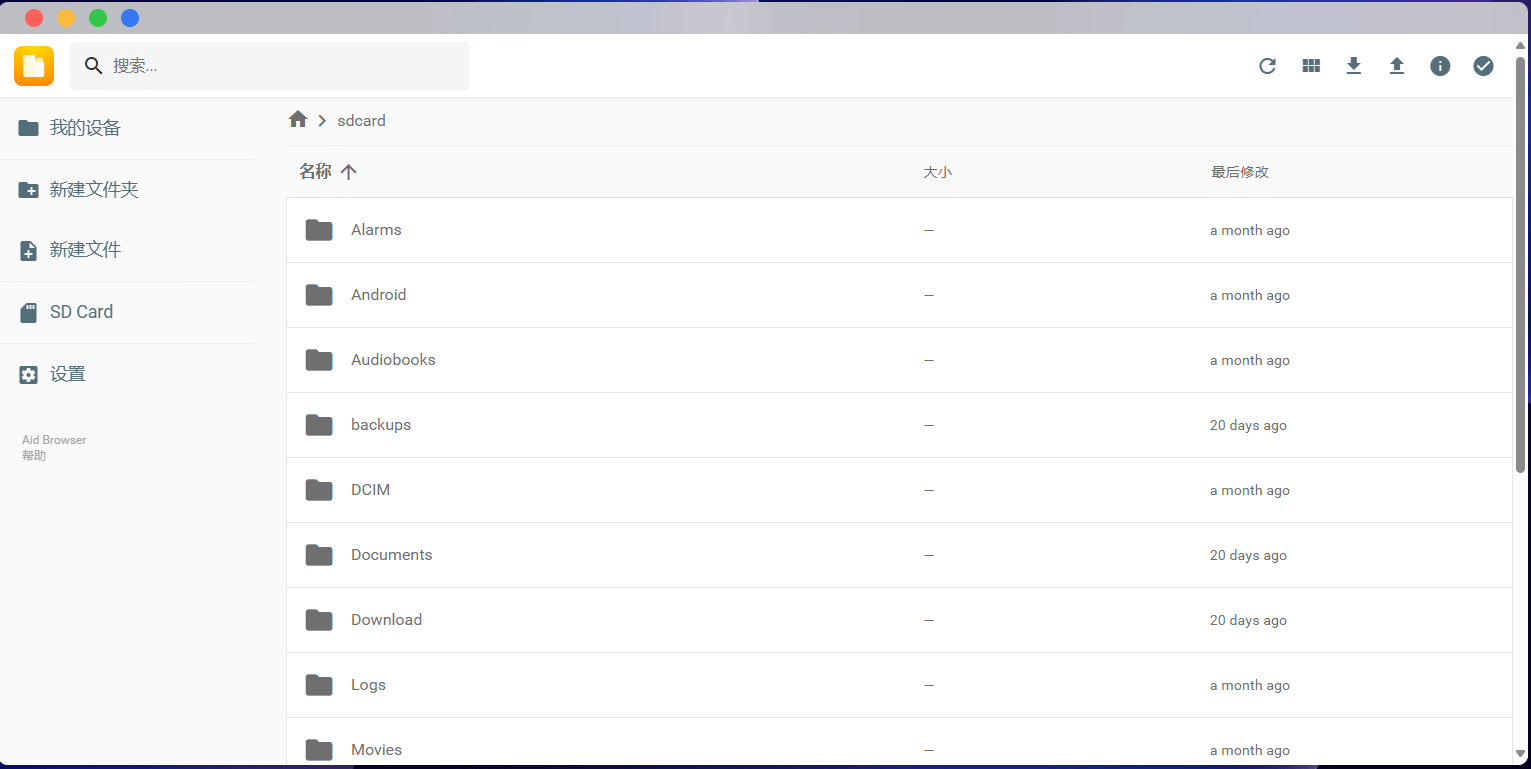
Select SD Card on the left to quickly jump to device storage:
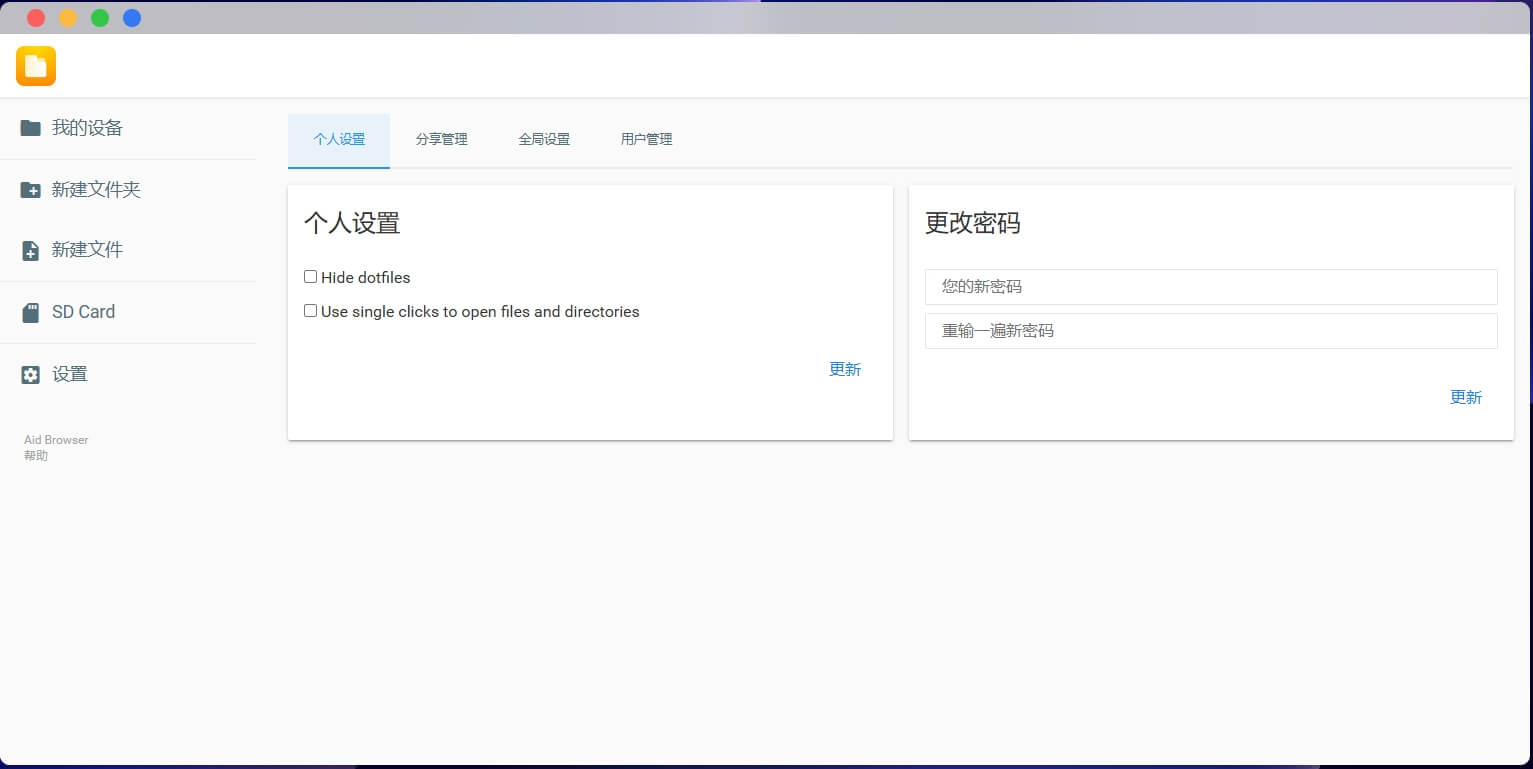
Select Settings on the left to configure related options:
- Common paths:
The SD card directory on phone/ARM boards in AidLux is sdcard.
The Home directory contains examples.
The directory for an external USB drive is media/sdi1.
The image directory under sdcard is DCIM.
- Upload and download files
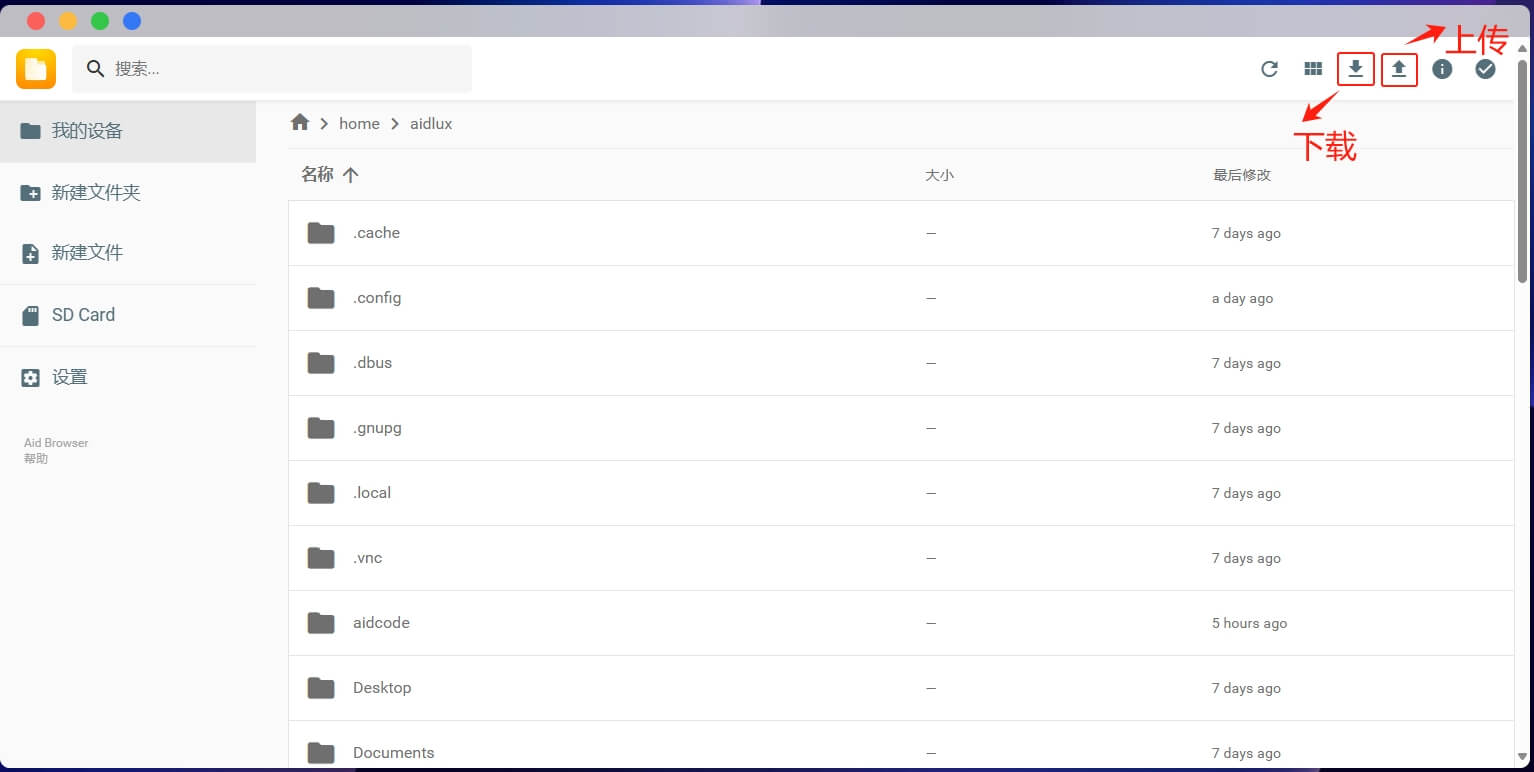
To upload files, choose code files/images from a folder on your computer and click the upload button in the top-right corner of the file browser. You can also drag and drop files directly into the browser. (If a file is large, an upload progress bar appears at the top.) Click the download button in the top-right corner to download files from the device to your computer.
💡 Note
Only /home/AidLux has permission to receive uploaded files.
AidLinux Environment
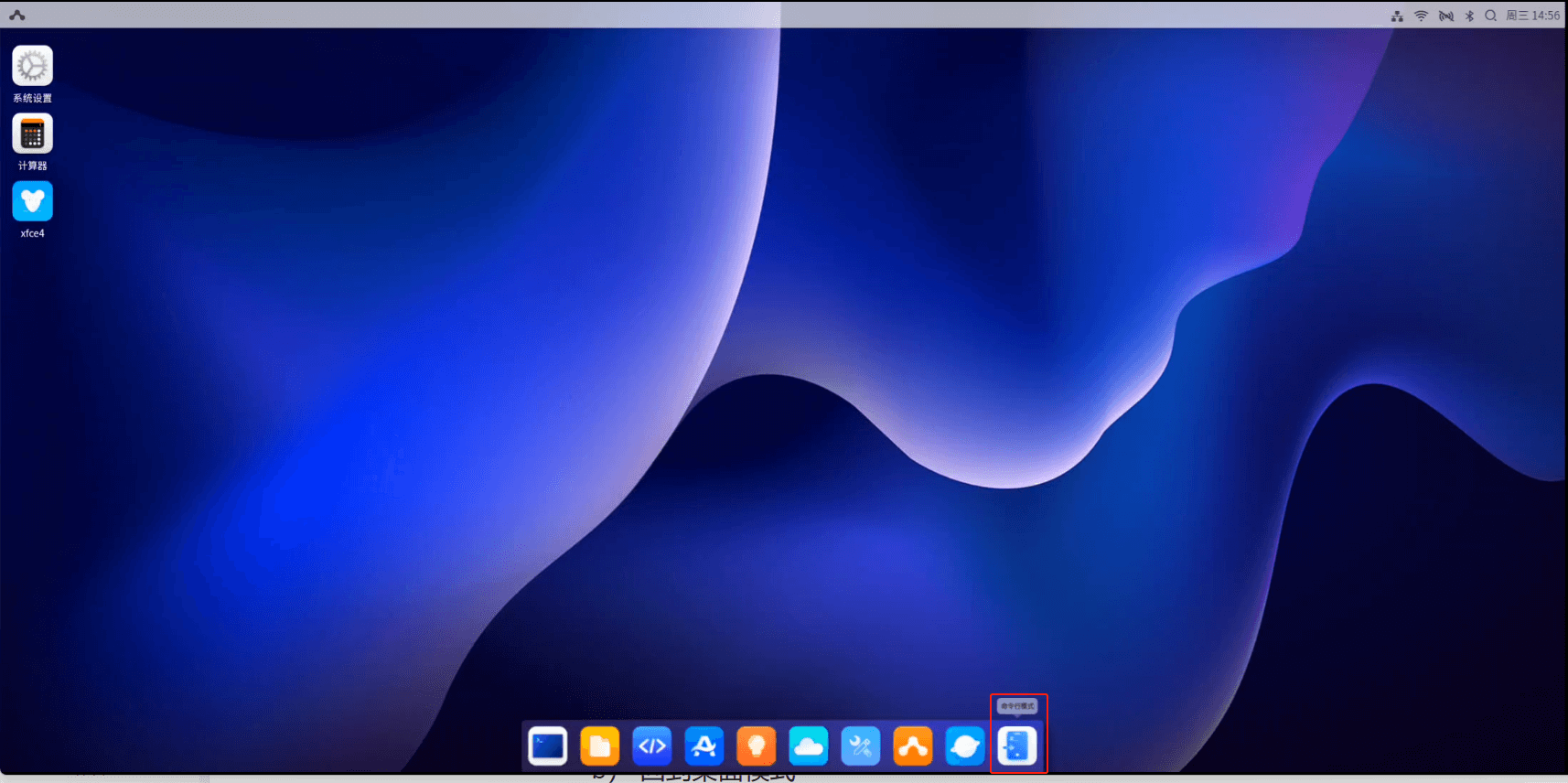
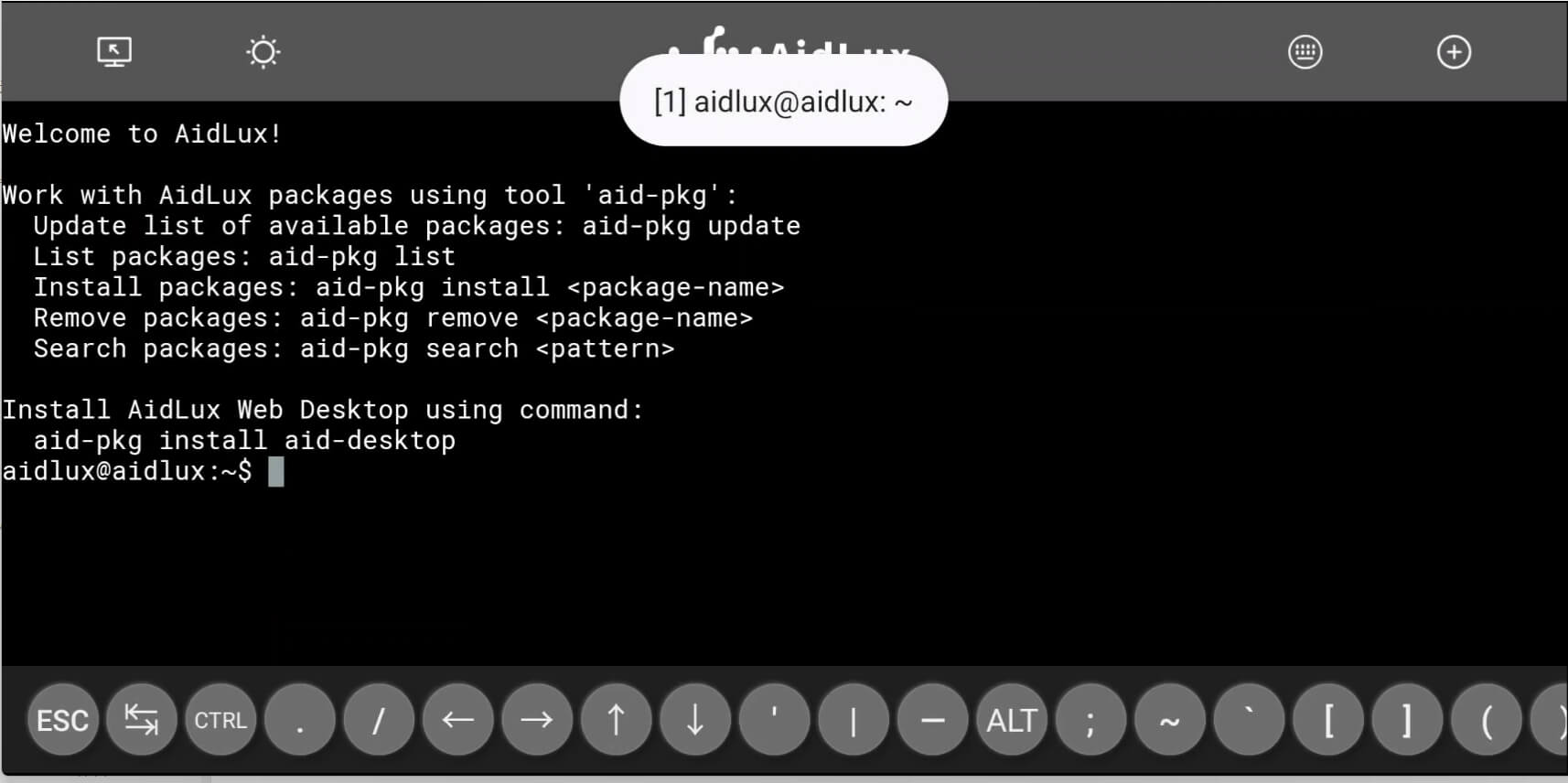
AidLux provides an experience very close to a native Linux environment. If you need a native Linux terminal, click the command-line mode icon on the AidLux desktop to enter terminal mode.
💡 Note
Not available in web desktop mode.
Return to Desktop Mode
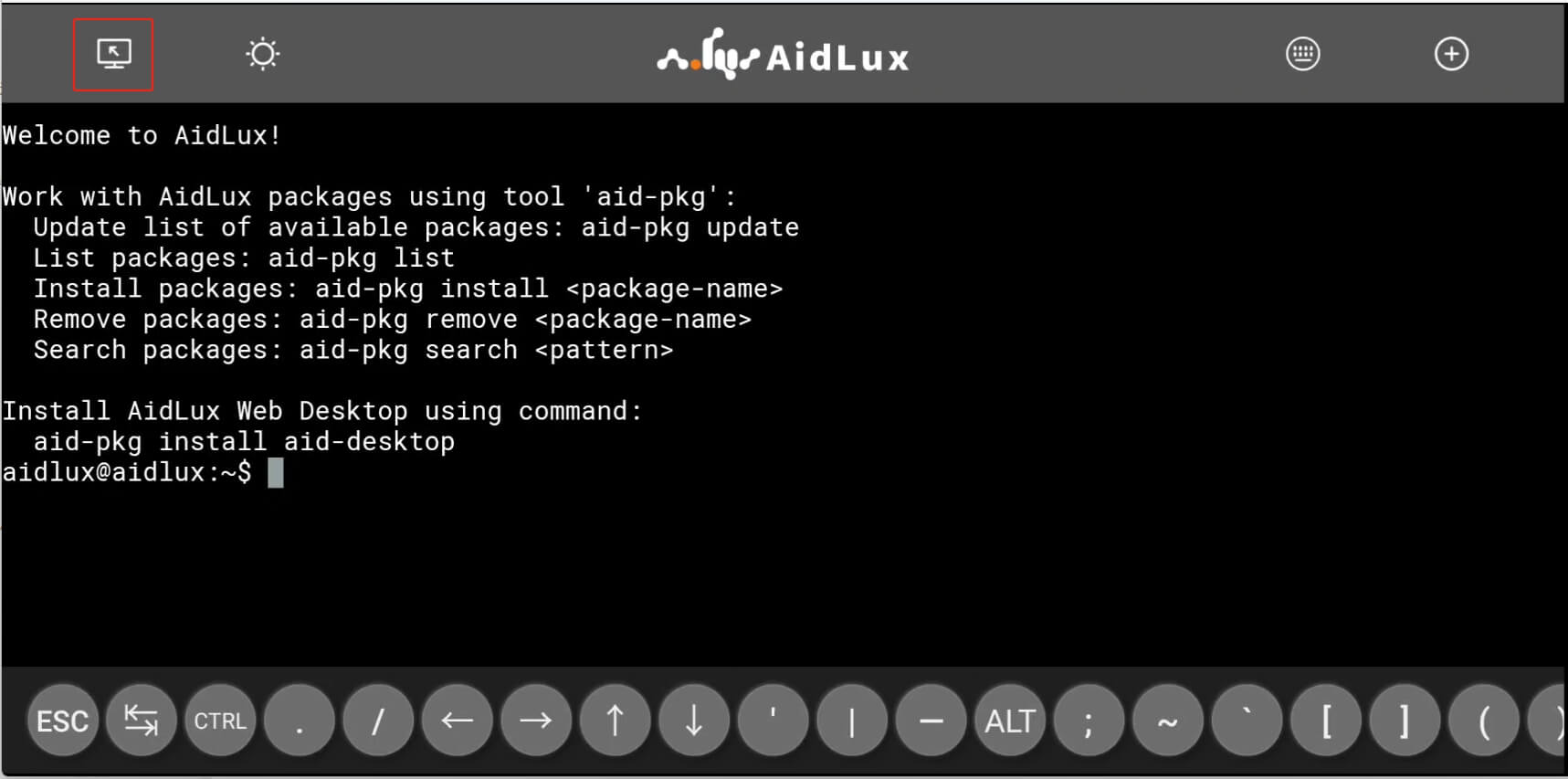
To return to desktop mode, click the button in the top-left corner of the Aid terminal:
Touch Bar
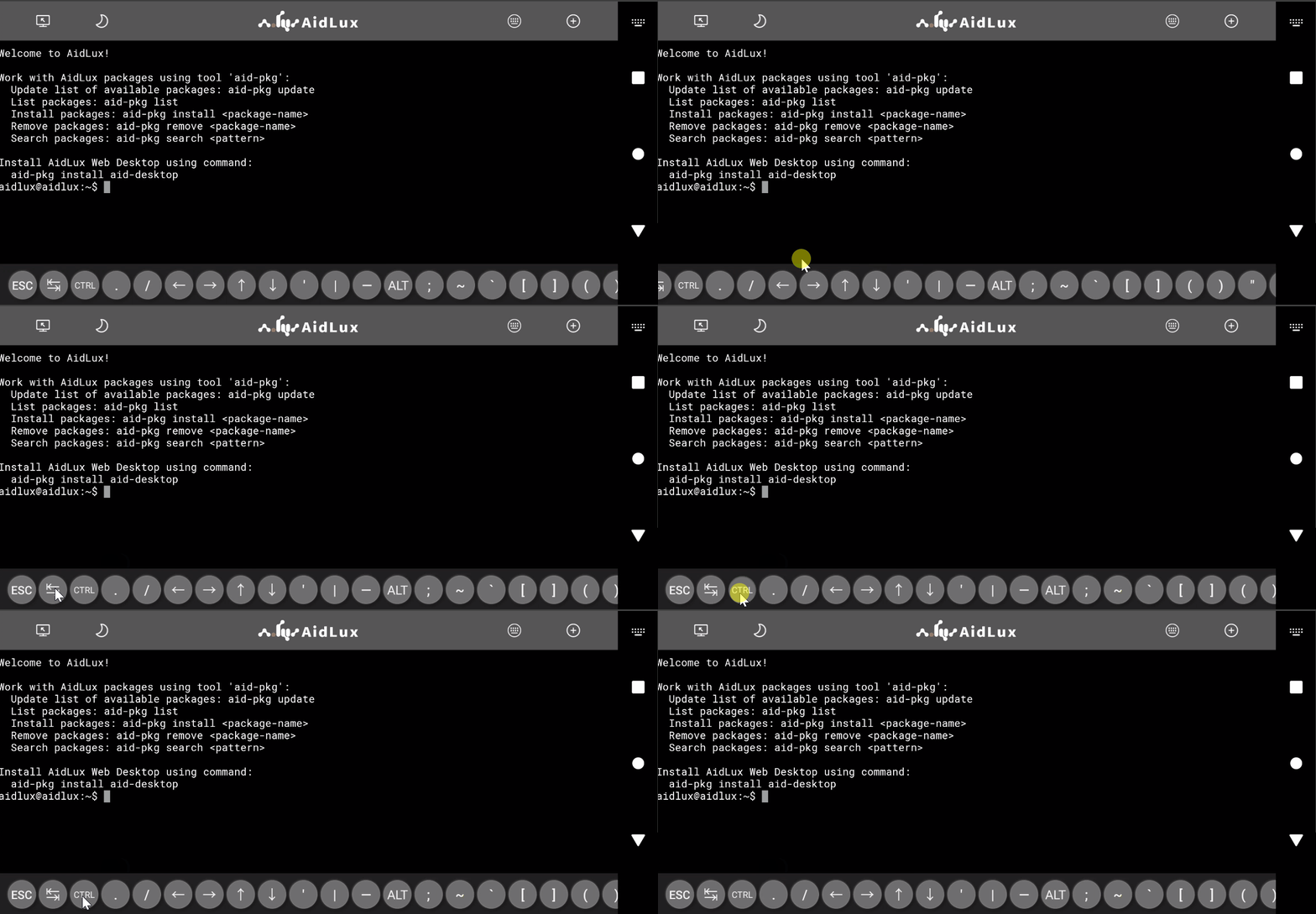
The Touch Bar at the bottom of the terminal provides commonly used function keys. Because screen width is limited, swipe horizontally to view the full Touch Bar. Function keys on the Touch Bar, such as CTRL and ALT, stay pressed visually when tapped to support key combinations.
Switch Touch Bar theme
Click the sun-shaped button in the top-left of the terminal to switch the bottom Touch Bar between white and black themes:
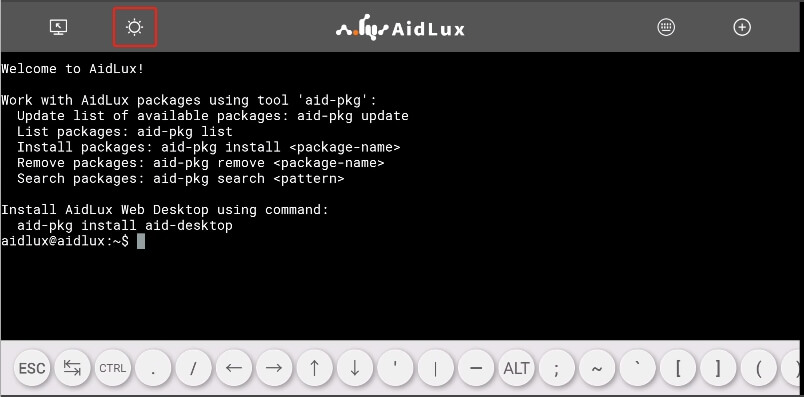
Click again to switch the Touch Bar to the black theme:
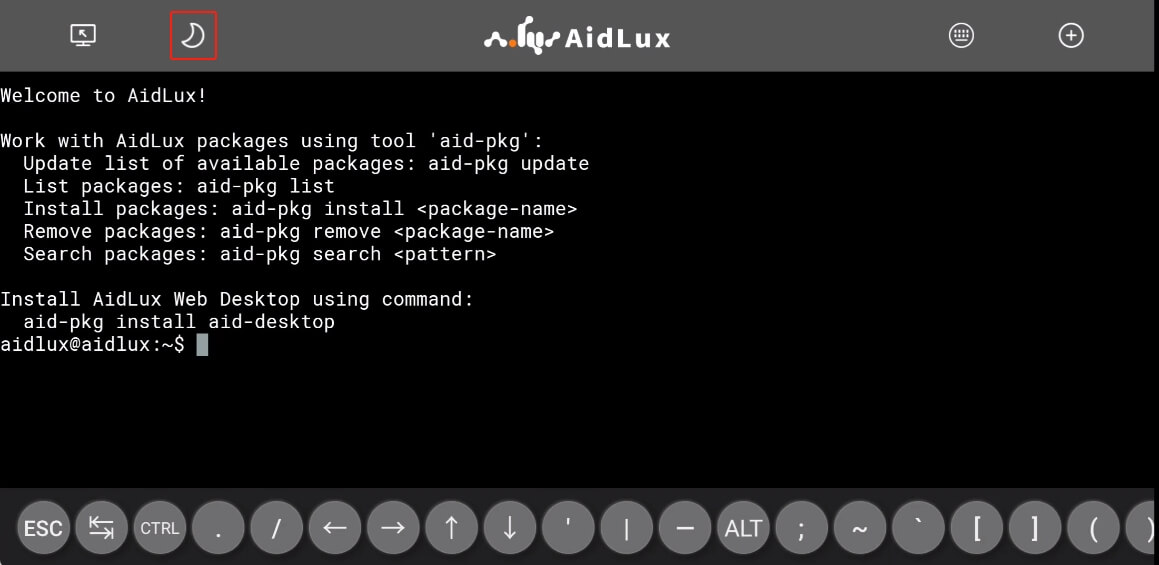
Keyboard
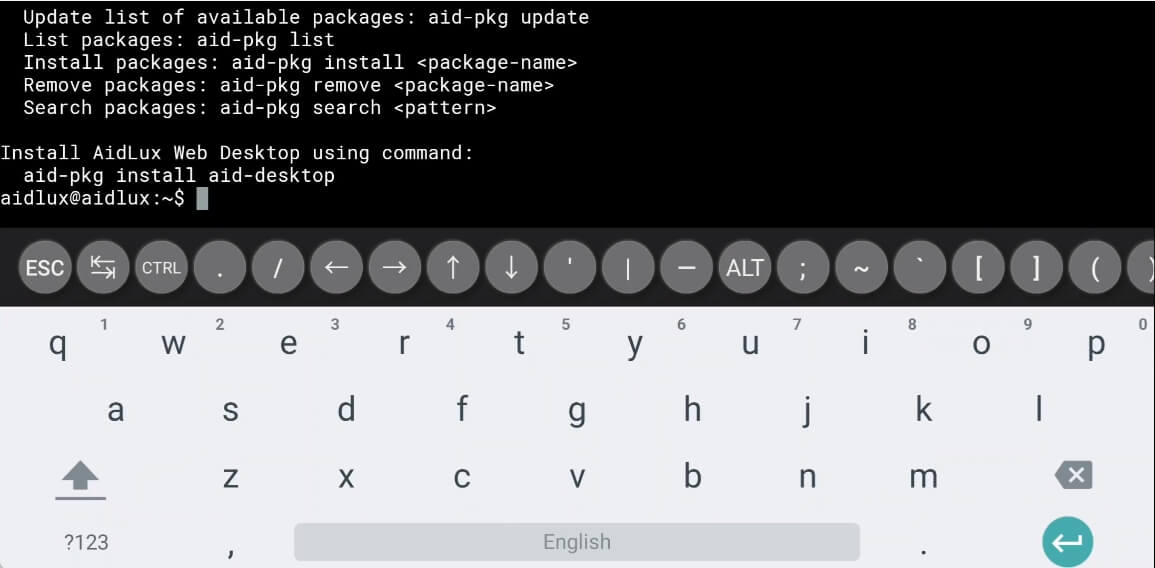
Tap a blank area in the terminal to bring up the system keyboard:
Click the keyboard-shaped button in the top-right corner of the terminal to toggle lock/hide for the built-in keyboard. After switching, a lock icon appears at the top-right of the button:
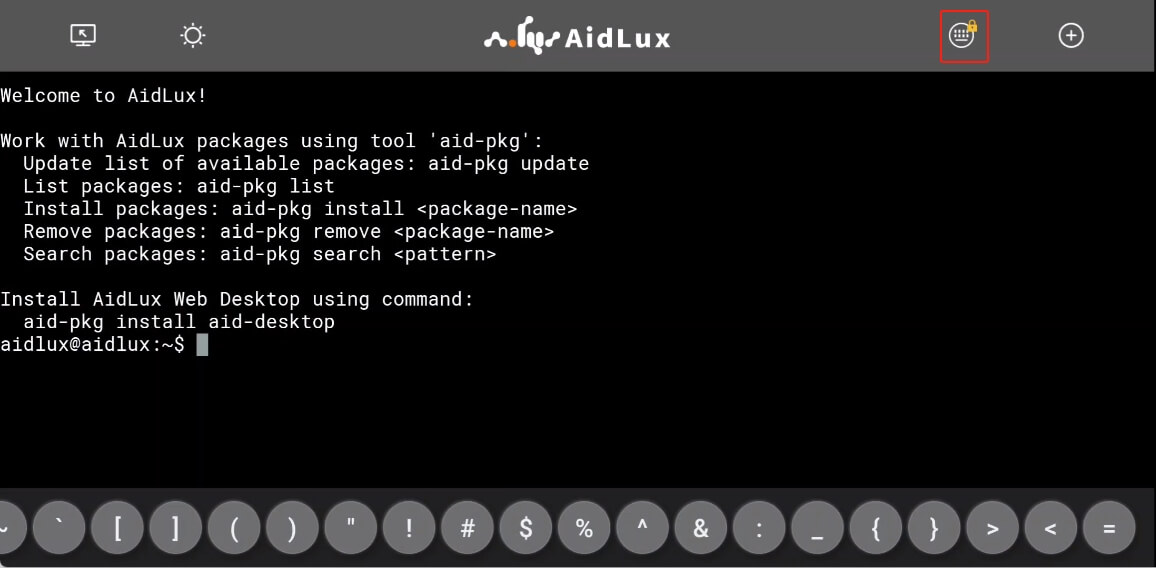
Multiple Terminals
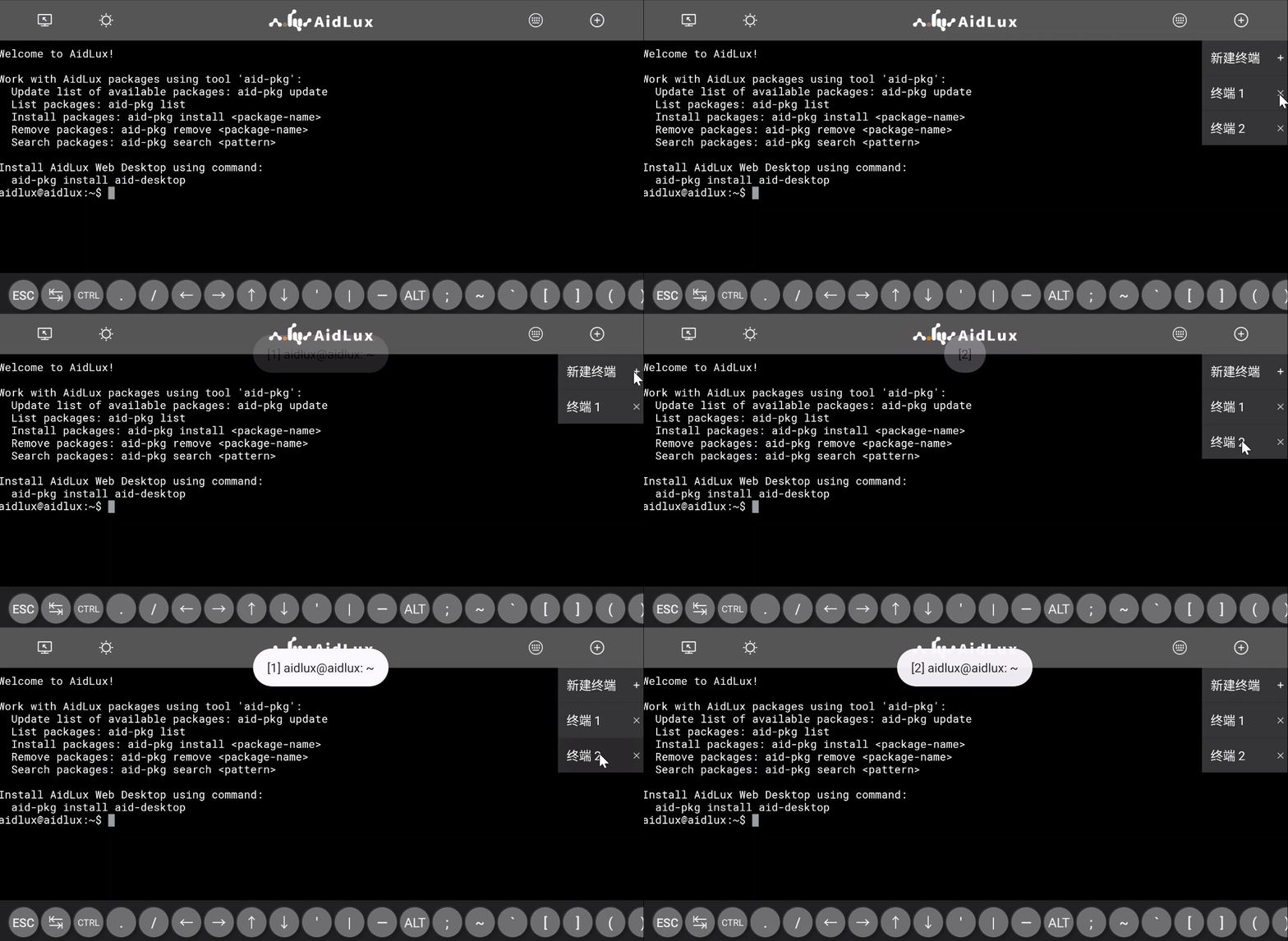
When you need to run multiple foreground tasks, one terminal may not be enough. Click the plus button in the top-right corner to create more terminals, and switch between them there. To close a terminal, click the plus button and then click the close button to the right of the terminal index.
Switch Between Android and AidLux Desktop
In Settings, check whether AidLux is set as the home screen app (enable this if you want AidLux to auto-start on boot; disable it otherwise). After disabling, you can flexibly switch between Android and the AidLux desktop environment, as shown below:

Configure Boot Auto-Start Services
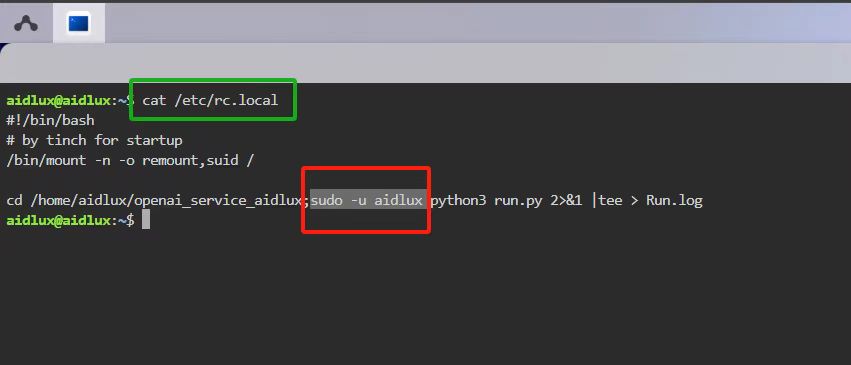
Open the terminal and check the /etc/rc.local configuration file. Add services that should auto-start on boot to the rc.local configuration as shown below.
cd /home/aidlux/openai_service_aidlux
sudo -u aidlux python3 run.py